![LumenLearning_StackedLogo_RGB_Blackboard@2x.png]](https://support.lumenlearning.com/hs-fs/hubfs/Branding%202023/LumenLearning_StackedLogo_RGB_Blackboard@2x.png?height=40&name=LumenLearning_StackedLogo_RGB_Blackboard@2x.png)
Upgrading OHM from LTI 1.1 to LTI 1.3
A Guide for Blackboard Administrators
Overview
Lumen OHM is transitioning customers from LTI 1.1 to LTI 1.3. This upgrade brings improved security, better compatibility with Blackboard, and a more reliable integration experience for both instructors and students.
This guide walks you through the upgrade end to end. You can complete it at any time, including mid-term — there's no need to wait for a course to finish. The same workflow applies to both Blackboard Learn (Original) and Blackboard Ultra; both are fully supported.
|
Good to know: This is an in-flight upgrade. Your existing courses, student grades, and content are preserved automatically throughout the process — no course copies, re-linking, or rebuilding required. |
What to Expect
Here's a quick summary of what to expect during the upgrade — including the parts we handle automatically on your behalf:
- Your Blackboard administrator registers the OHM LTI 1.3 tool in your Blackboard environment while your existing LTI 1.1 course stays live and accessible the entire time.
- During registration, Blackboard detects your existing OHM LTI 1.1 configuration and offers to carry it forward to LTI 1.3. Approving the migration moves every existing OHM link, content placement, and grade column to the new connection automatically.
- Once configured, each instructor signs in to OHM through Blackboard one time before students access the course. It's a quick, one-time step — we've outlined it in the What to Tell Your Instructors section below so you can share it directly.
|
OHM Login: Sign-in happens entirely within Blackboard. Simply open any OHM course assignment and the login prompt will appear — no need to visit ohm.lumenlearning.com separately. |
|
Note: If a student happens to open an assignment before the instructor signs in, they'll see a friendly message asking them to notify their instructor. As soon as the instructor opens the course, the message clears automatically. |
- No course copy or reassociation is required — your course will load and operate under LTI 1.3 automatically.
- Students will experience no disruption. All prior grade passback data from LTI 1.1 launches remains intact, and all future work continues to be recorded in the same Blackboard course and OHM course.
Instructions for Blackboard Administrators
The steps below walk you through registering the OHM LTI 1.3 tool in Blackboard. The workflow is identical in Blackboard Learn (Original) and Blackboard Ultra — both are fully supported.
Step 1 — Use the OHM LTI 1.3 Client IDLumen Learning provides a single OHM LTI 1.3 Client ID (also called Application ID) that all institutions use to register the tool:
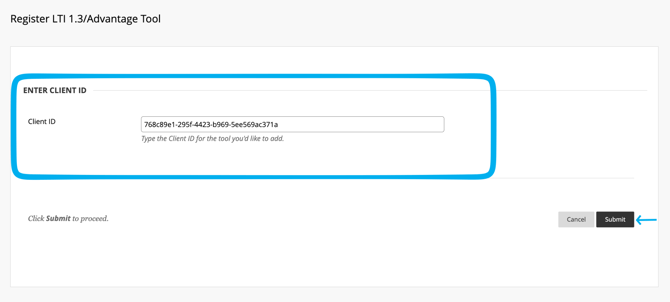
768c89e1-295f-4423-b969-5ee569ac371a
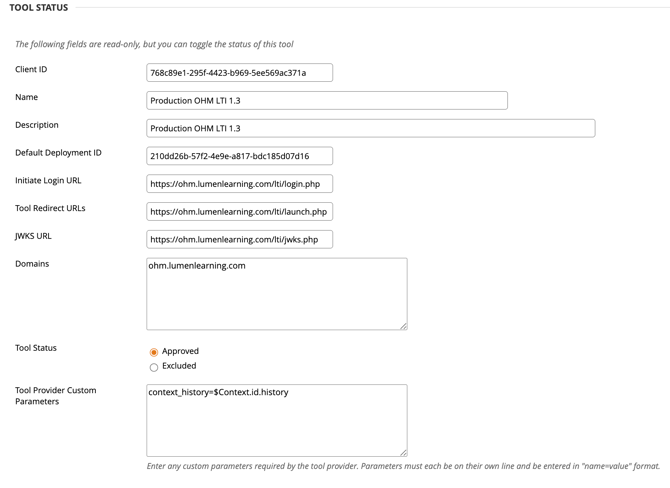
You'll paste this Client ID into Blackboard in the next step. The Client ID is the only value you need to provide — Blackboard retrieves every other configuration value (Default Deployment ID, Initiate Login URL, Tool Redirect URLs, JWKS URL, Domains, and Tool Provider Custom Parameters) automatically.
Step 2 — Register the OHM LTI 1.3 ToolLog in to Blackboard as a system administrator.
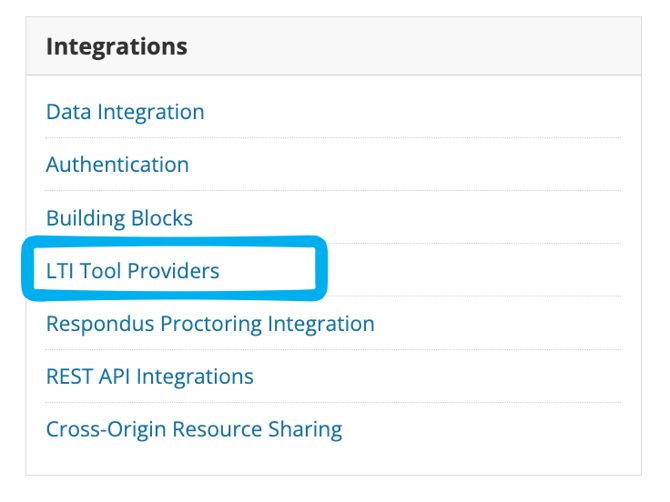
In the Administrator Panel, under Integrations, click LTI Tool Providers.
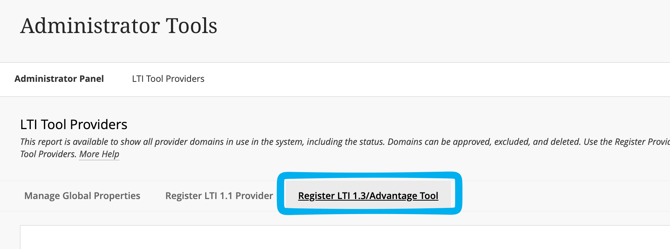
On the LTI Tool Providers screen, click Register LTI 1.3/Advantage Tool.
In the Client ID field, paste the Client ID from Step 1 (768c89e1-295f-4423-b969-5ee569ac371a), then click Submit.
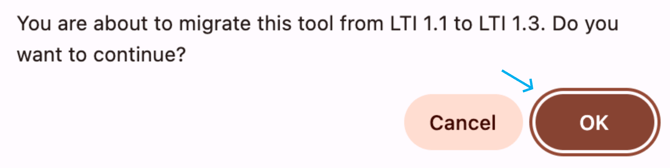
Because Lumen OHM is hosted at the same domain (ohm.lumenlearning.com) as your existing LTI 1.1 configuration, Blackboard detects the prior tool and displays a confirmation dialog:
"You are about to migrate this tool from LTI 1.1 to LTI 1.3. Do you want to continue?"
Click OK to proceed. This single step will:
- Carry every existing OHM LTI 1.1 link forward to the new LTI 1.3 connection.
- Preserve all existing content placements and grade columns in every active course.
- Replace the older LTI 1.1 connection with the new LTI 1.3 connection — there's nothing for you to remove manually.
|
Heads-up on timing: Approval applies to every OHM course at your institution at once. We recommend choosing a time when instructors are available to complete their one-time sign-in shortly afterward — the instructor section below walks them through that step. |
Step 4 — Confirm the Tool Configuration
Blackboard displays the Accept LTI 1.3 Tool screen. This screen has two sections.
Tool Status. Most fields here are read-only and auto-populated from Lumen's registration with Anthology — Client ID, Name, Description, Default Deployment ID, Initiate Login URL, Tool Redirect URLs, JWKS URL, Domains, and Tool Provider Custom Parameters. Confirm that Tool Status is set to Approved.
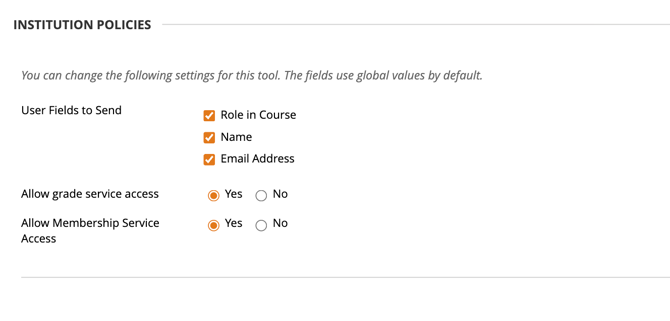
Institution Policies. Confirm the following settings (these are the recommended defaults for OHM):
- User Fields to Send: Role in Course, Name, Email Address (all checked)
- Allow grade service access: Yes
- Allow Membership Service Access: Yes
Before clicking Submit, copy the Default Deployment ID value from the Tool Status section for your records.
Click Submit.
Step 5 — Verify the Registration
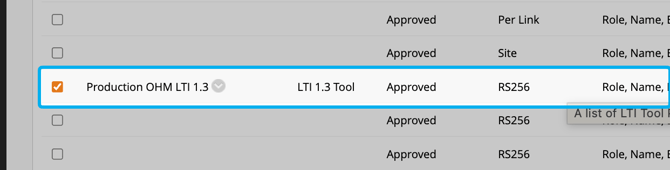
After submitting, you'll return to the LTI Tool Providers list. The new OHM LTI 1.3 tool appears with type LTI 1.3 Tool and status Approved, replacing the previous LTI 1.1 entry. Nothing was lost — your connection has simply been carried forward to the new version.
No further handoff to Lumen is required. The OHM platform recognizes the new connection automatically, so your instructors can complete their one-time sign-in right away.
If you would like to test this this process, you can go to a faculty member's Canvas course that used OHM in a previous term and click on an OHM assignment. It should launch for you. The faculty member can also test by following the instructions below.
What to Tell Your Instructors
Once you've completed Steps 1–5, each instructor will complete one quick sign-in step in Blackboard before students access their course. The information below explains exactly what they'll need to do — feel free to share or forward it directly.
|
Quick first sign-in: Before students access the course, each instructor should open any OHM assessment in Blackboard once and complete the login prompt that appears. It's a one-time, expected step — your course content loads normally right after. |
The steps are the same for both Blackboard Learn (Original) and Blackboard Ultra — only the path to an OHM assessment differs slightly. Both paths are noted in the steps below.
Steps for Instructors to Complete the Transition
- Open your existing OHM course in Blackboard.
- Open any OHM assessment using the path for your course view — in Blackboard Learn (Original), click the OHM course link in the left-hand course menu (named after your OHM course, for example OHM College Algebra) to open the OHM landing page; in Blackboard Ultra, open the OHM folder on the Course Content page (also named after your OHM course). The link or folder is created automatically when your OHM cartridge is imported.
- Click any OHM assessment (homework, quiz, exam, or tutorial assignment) and complete the OHM login prompt that appears.
- This is a one-time, expected step. After signing in, your course content loads normally — no course copy or re-linking required.
- Once you've signed in, your course is running on LTI 1.3 and students can access it without issue. Let your students know they're good to go.
What Students Will Experience
Students don't need to do anything. From their perspective, the upgrade happens behind the scenes — they continue using OHM exactly as they always have.
|
Note: Once the instructor completes the one-time sign-in, students experience uninterrupted access to their OHM course. |
- Students open the course from Blackboard exactly as they always have.
- All grades and scores from work completed before the upgrade are preserved exactly as they are today.
- All future assignments and assessments continue to record grades back to the same Blackboard course and OHM course the student is already enrolled in.
- There's no need for students to re-enroll, restart, or redo any of their coursework.
If a student happens to open an OHM assessment before the instructor has completed their first sign-in, they'll see a brief "Course link not established" message asking them to let their instructor know. Once the instructor opens the course and signs in, the message clears automatically.
Frequently Asked Questions
Will my students lose any of their grades or progress?
No — all existing grade passback data is preserved. Students keep every previously recorded score, and new work continues flowing to the same Blackboard gradebook.
Do I need to create a new course or copy my existing one?
No. The upgrade maps your existing course to the new LTI 1.3 connection automatically. No copying, reassociating, or rebuilding is required.
Why are instructors being asked to log in to OHM again?
It's a one-time authentication prompt that's part of the upgrade — completely expected, and it won't happen again after the first sign-in.
Does the LTI 1.1 tool need to be removed before adding 1.3?
No removal is needed. When the LTI 1.3 tool is registered with the same domain (ohm.lumenlearning.com), Blackboard automatically carries the existing LTI 1.1 configuration forward and replaces the old entry with the new one. All content items and grade columns stay exactly where they are.
Who should I contact if I run into issues?
We're here to help. Reach out to Lumen Learning Support any time during the transition — visit support.lumenlearning.com and submit a request, and our team will follow up with you directly.

This guide is intended for Blackboard administrators transitioning OHM from LTI 1.1 to LTI 1.3. If you'd like further documentation or support resources, please reach out to your Lumen Learning representative — we're here to make this transition as smooth as possible.