![LumenLearning_StackedLogo_RGB_Blackboard@2x.png]](https://support.lumenlearning.com/hs-fs/hubfs/Branding%202023/LumenLearning_StackedLogo_RGB_Blackboard@2x.png?height=40&name=LumenLearning_StackedLogo_RGB_Blackboard@2x.png)
Upgrading OHM from LTI 1.1 to LTI 1.3 in Canvas
A Guide for Canvas Administrators and Instructors
Overview
Lumen OHM is transitioning customers from LTI 1.1 to LTI 1.3. This upgrade brings improved security, better compatibility with Canvas, and a more reliable integration experience for both instructors and students.
This guide will walk you through how to complete this transition — even if you have courses that are currently active and in-progress. You do not need to wait for the end of a term to make this move.
|
Good to know: An in-flight upgrade means your existing courses, student grades, and content are preserved throughout the process. No course copies or re-linking are required. |
What to Expect
Before getting started, here is a summary of what the upgrade process involves and what you can expect along the way:
- Your Canvas administrator will add the OHM LTI 1.3 Developer Key to your Canvas environment while your existing LTI 1.1 course remains live and accessible.
- Once configured, instructors must log in to OHM via Canvas immediately after the Developer Key and Client ID have been applied. This is a required step before students attempt to access the course.
|
OHM Login: This is done entirely within Canvas. Simply open the OHM course assignment and the login prompt will appear — no need to visit ohm.lumenlearning.com separately |
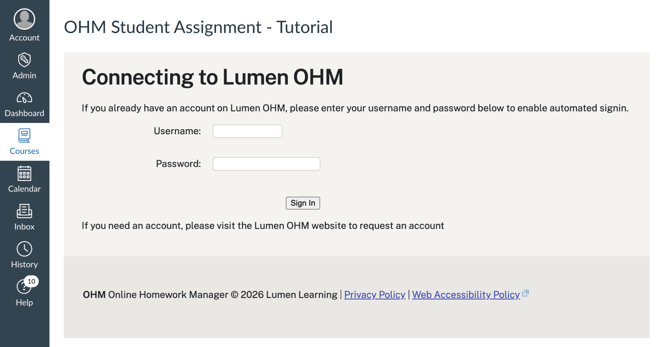
- Please complete this step before your students log in: If an instructor does not log in before students open the assignment, students will see an error prompting them to notify their instructor. The instructor simply needs to open the course first to resolve this.
- No course copy or reassociation is required. The course will load and operate under LTI 1.3 automatically.
- Students will experience no disruption. All prior grade passback data from LTI 1.1 launches will remain intact, and all future work will continue to be recorded in the same Canvas course and OHM course.
Instructions for Canvas Administrators
Please do not complete without a meeting. To request a meeting, email support@lumenlearing.com and include "OHM 1.3 upgrade" in the subject of the email.
Complete the following steps to add the OHM LTI 1.3 Developer Key to your Canvas environment.
Step 1 — Create a New Developer Key- Log in to Canvas as an administrator.
- Navigate to Admin > Developer Keys.
- Click + Developer Key and select + LTI Key.
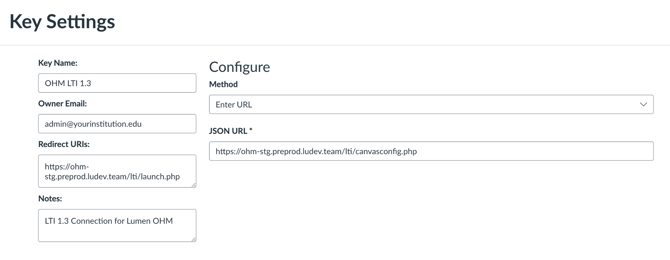
- Enter the following:
- Key Name: OHM LTI 1.3
- Owner Email: [your Canvas administrator]
- Redirect URLs: https://ohm.lumenlearning.com/lti/launch.php
- Notes: Optional
- Method: Select Enter URL
- JSON URL: https://ohm.lumenlearning.com/lti/canvasconfig.php
- Click Save to return to the Developer Keys.
- Find the newly created key and toggle the State to ON.
- Copy the numeric Client ID shown in the Details column — you will need this in the next step.

Step 2 — Add the LTI 1.3 App Configuration
- Navigate to Admin > Settings > Apps > View App Configurations.
- Click + App.
- Set Configuration Type to "By Client ID."
- Paste the Client ID copied in Step 1.
- Click Submit to apply the configuration.
|
Note for Admins: Your existing OHM LTI 1.1 configuration does not need to be removed before completing these steps. The 1.3 configuration can be added while the 1.1 course is active. |
If you would like to test this this process, you can go to a faculty member's Canvas course that used OHM in a previous term and click on an OHM assignment. It should launch for you. The faculty member can also test by following the instructions below.
Instructions for Instructors
Once your Canvas administrator has completed the Developer Key and Client ID setup, there is one important step you will need to complete before your students access the course.
|
Important Step — Login Required Before Students Access the Course As soon as your admin confirms the setup is complete, you must open your OHM course in Canvas and complete the login prompt before any students attempt to access it. You will get the log in prompt by clicking on any OHM assessment in Canvas. If a student opens the course before you have logged in, they will see the following error: "Course link not established yet. Notify your instructor they need to click this assignment to set it up." |
Steps to Complete the Transition
- Coordinate with your Canvas admin to confirm the Developer Key and Client ID have been applied.
- Immediately open your existing OHM course in Canvas. Click on an OHM assessment. You will be prompted to log in to OHM — complete this login before notifying students.
- This is a one-time, expected step. After logging in, your course content will load normally with no course copy or re-linking required.
- Once you have successfully logged in, your course is running on LTI 1.3 and students can access it without issue.
What Students Will Experience
Students do not need to take any action. The transition to LTI 1.3 is seamless from their perspective.
|
Note: Students will have uninterrupted access as long as the instructor has completed the one-time login after LTI 1.3 was configured. |
- Students can open the course from Canvas exactly as they always have.
- All grades and scores from previous work completed under LTI 1.1 will remain present and intact.
- All future assignments and assessments will continue to record grades back to the same Canvas course and OHM course the student started in.
- There is no need to re-enroll or restart any coursework.
Frequently Asked Questions
Will my students lose any of their grades or progress?
No. All existing grade passback data from prior LTI 1.1 launches is preserved. Students will retain all previously recorded scores, and any new work they complete will continue to flow to the original Canvas course gradebook.
Do I need to create a new course or copy my existing one?
No. The transition maps your existing course to the new LTI 1.3 connection. You do not need to copy the course, reassociate content, or rebuild anything.
Why am I being asked to log in to OHM again?
This is a one-time authentication prompt that occurs as part of the upgrade. It is expected behavior and will not happen again after the initial login.
Does the LTI 1.1 tool need to be removed before adding 1.3?
No. Testing has confirmed that LTI 1.3 can be added to the Canvas environment while an LTI 1.1 course is still active. The existing course will transition to 1.3 upon the next launch without disruption.
Who should I contact if I run into issues?
Please reach out to Lumen Learning Support for any questions or assistance during the transition process. You can contact support at support.lumenlearning.com and Submit a request.

This article is intended for Canvas administrators and instructors upgrading from OHM LTI 1.1 to LTI 1.3. For additional documentation and support resources, please contact your Lumen Learning representative.