![LumenLearning_StackedLogo_RGB_Blackboard@2x.png]](https://support.lumenlearning.com/hs-fs/hubfs/Branding%202023/LumenLearning_StackedLogo_RGB_Blackboard@2x.png?height=40&name=LumenLearning_StackedLogo_RGB_Blackboard@2x.png)
Setup Lumen One Platform GLobal LTI Integration
To enable faculty to use Lumen Learning One courses from within your LMS, you will need to set up a global learning tool interoperability (LTI) connection. There are four steps:
- Register Lumen One via Dynamic Registration
- Provide Lumen Support with configuration details via Helpdesk Ticket
- Create a test course shell within your Moodle LMS
- Add a newly created activity to your course shell
Step 1: Register Lumen Waymaker via Dynamic Registration
-
Log in as a Moodle administrator
-
Navigate to Site Administration>Plugins
-
Click Manage Tools under the External Tool Option

- Enter the following Tool URL in the Field
- https://lti.one.lumenlearning.com/lti3/
- Click Add LTI Advantage
The new tool will appear as a title in the list of tools displayed on the screen.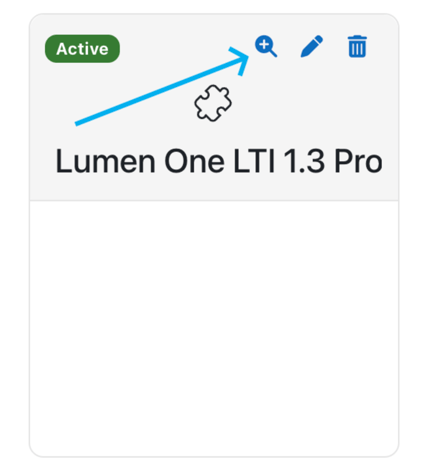
- Click on the + magnifying icon of the tool to View configuration details
- Copy the configuration details. This information will need to be sent to Lumen Support.
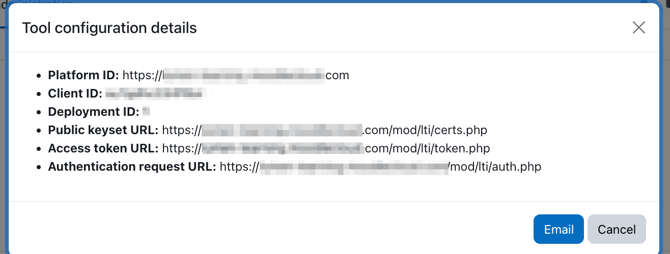 Note: The details for the configuration is unique to your Moodle instance. Copy and send Lumen Support what appears for your connection.
 - Exit out of the configuration details popup
- Click Activate to activate the new tool
Step 2: Submit Configuration Details to Lumen Support
After completing Dynamic Registration, open a Helpdesk ticket with Lumen Support and include the configuration details generated by Moodle. A member of the support team will confirm when setup is complete on the Lumen side.
Step 3: Create a Test Course Shell
- In Moodle, create a new course shell to use for testing
- Do not use a live or active course for this step
Step 4: Add an Activity to Your Course Shell
1. Inside your test course, turn editing on
2. Click Add an activity or resource
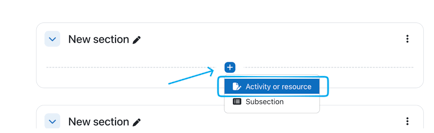
This will populate the first option for Moodle's Deep Linking Picker.
3. Choose the Lumen One tool from the preconfigured tools list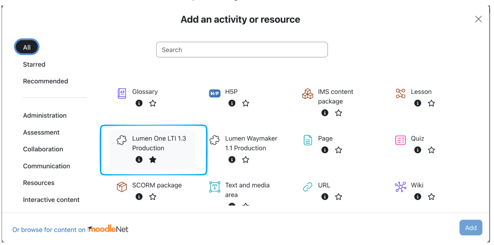
This will populate a New External Tool
4. Select Content to launch the Lumen One Course Catalog Picker. Select Desired Course
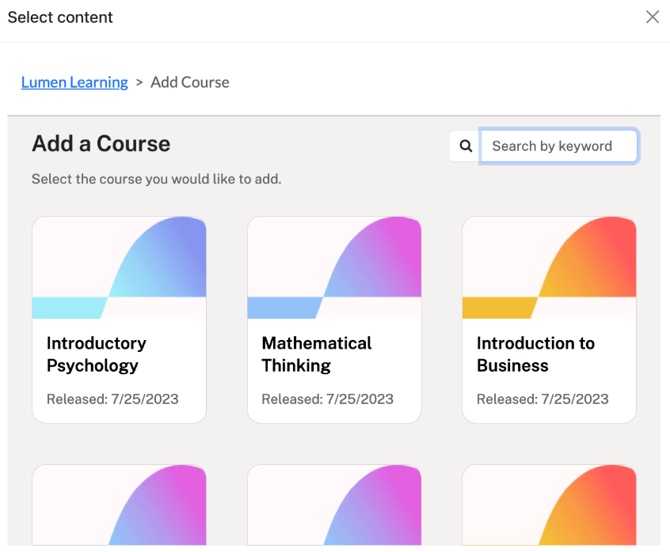
5. Once the desired course is selected you can preview the content and choose "Add Course"
6. The New External Tool will be added to the queue with an item list, save and close.Note: This can take some time to successfully load in the course shell and will display when finished
Confirming Successful Integration
Now that we have the Activity in place and have imported course content we want to confirm the content populates seamlessly in your LMS.
- Navigate to the Lumen Faculty Engagement Center
- Confirm you can access the content
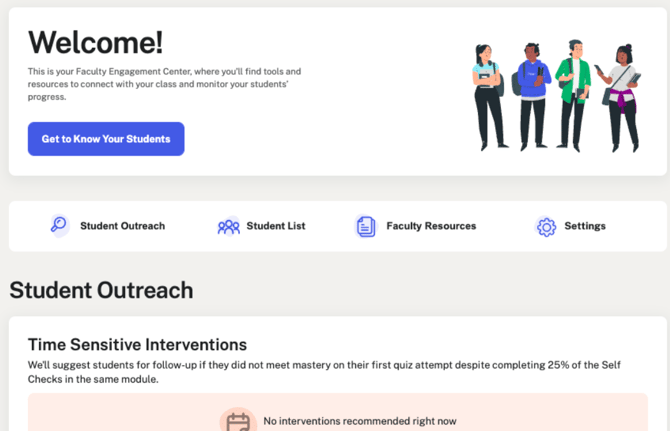
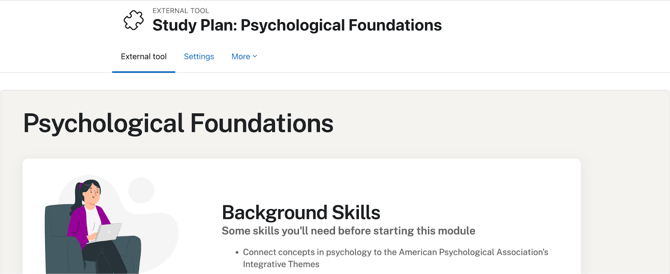
Note: Depending if you have accessed the platform before, you may be prompted with the End User License Agreement. If so, tick the box next to the "I have read the End User License Agreement" and click I agree - Return to the content and find a course Study Plan, confirm you can access the content
You’re done!
You have successfully completed setting up Lumen One with Moodle and have tested the course connection.