![LumenLearning_StackedLogo_RGB_Blackboard@2x.png]](https://support.lumenlearning.com/hs-fs/hubfs/Branding%202023/LumenLearning_StackedLogo_RGB_Blackboard@2x.png?height=40&name=LumenLearning_StackedLogo_RGB_Blackboard@2x.png)
OHM: Using Respondus Lockdown Browser - Instructors
Tips for Instructors:- If students will be testing on campus; please have your campus IT or Lab Administrator reach out to support if they require a specialized installer (such as the support of VMs).
- We highly recommend setting up a technical test assessment in OHM (or OHM via LMS) that requires Lockdown Browser and contains one question that’s easy to answer. You can always set this assessment up for ungraded practice. This will allow students to complete the prerequisite install of Lockdown Browser to ensure their system is ready for test time.
- Remember that OHM settings still dictate the access controls of your assessment. If your assessment allows students multiple attempts with the option to save and return to their work, this will also apply to the same assessment with Lockdown Browser enabled (students can save and exist and then return to re-initiate Lockdown Browser).
Step 1: Enable it at the course level
LockDown Browser must first be turned on for the course before it can be applied to any assessment. This is done from the course's Additional Options settings.
Here you can:
- Check Require when enabled on assessments to allow LockDown Browser to be used in the course
- Choose a Default for new assessments — either Do not require LockDown Browser or Require LockDown Browser — so new assessments automatically inherit the setting you prefer
Course-level LockDown Browser setting: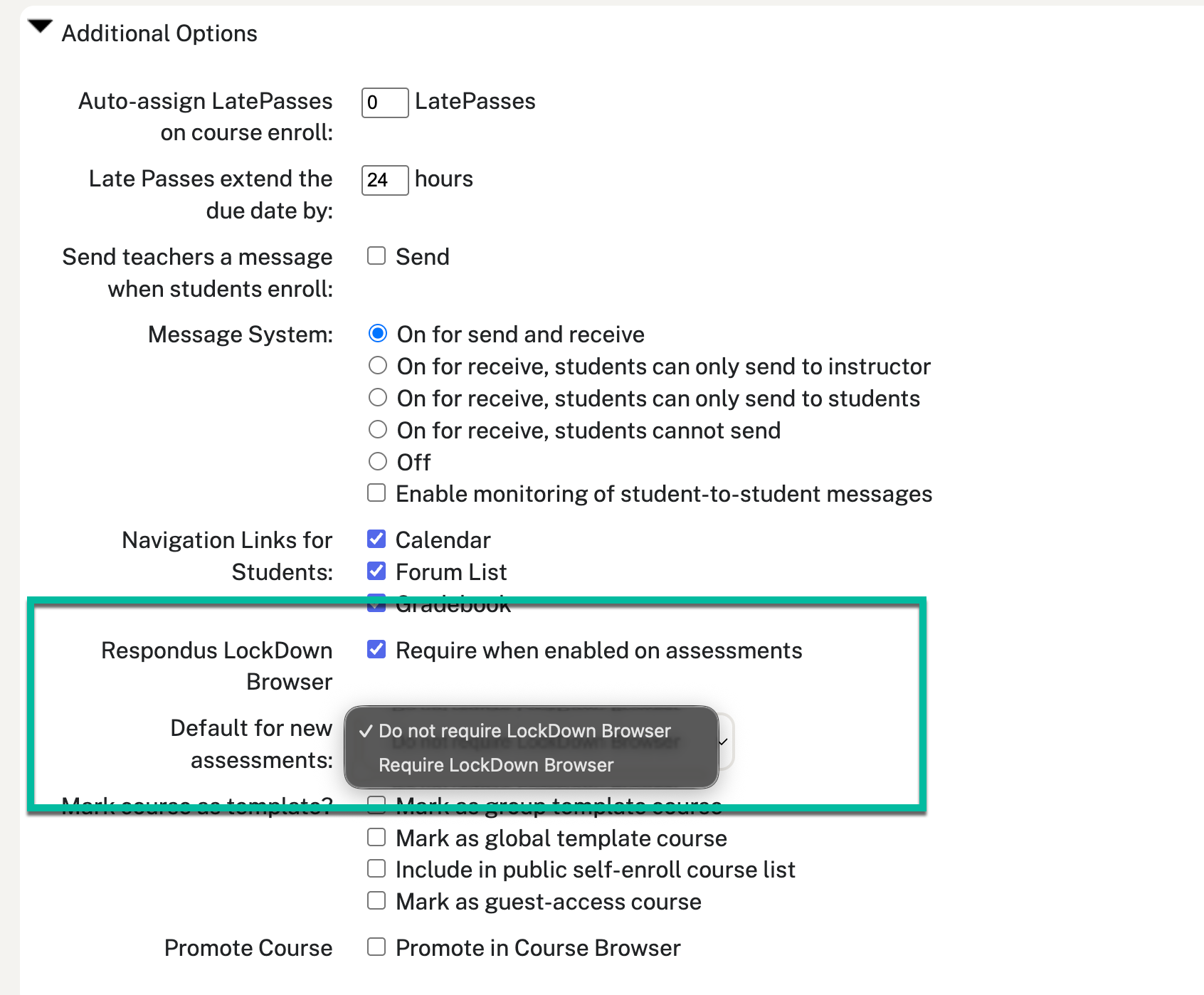
Step 2: Enable it on a qualifying assessment
Once the course-level setting is on, individual assessments can be configured under Time Limit and Access Control by checking Require LockDown Browser (or by relying on the course default you set in Step 1).
Assessment-level LockDown Browser setting
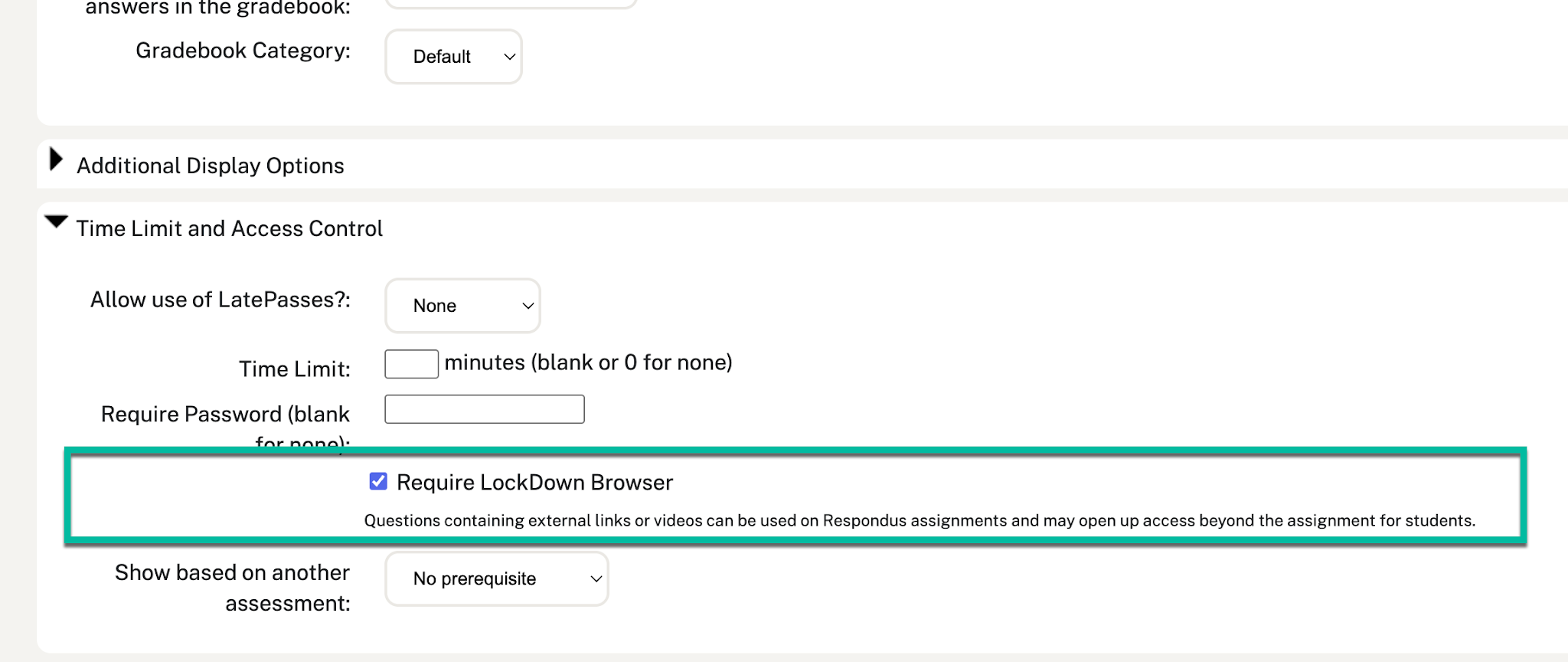
Note: If an assessment includes external web links or videos, those links may allow students to navigate beyond the assessment itself, even with LockDown Browser enabled. Keep this in mind when building assessments that will require LockDown Browser.
Which Assessments Qualify?LockDown Browser is available on assessments using Homework-style or Quiz-style submission types.
Because of how they function, LockDown Browser is not available for:
- Live Poll assessments
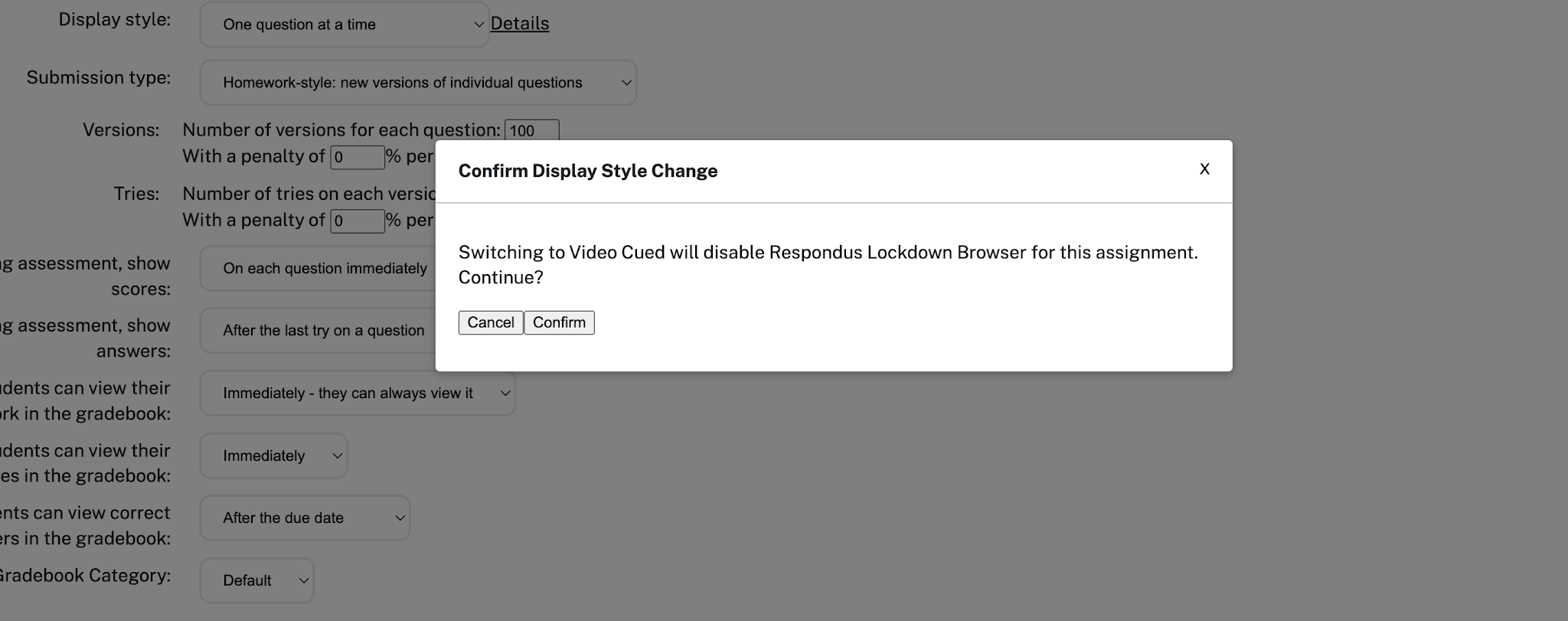
- Video Cued assessments
If you try to change an assessment's display style or submission type in a way that conflicts with an existing LockDown Browser requirement, OHM will show a confirmation warning and automatically adjust the LockDown Browser setting so the assessment stays in a valid state.
Conflicting setting warning:
Frequently Asked Questions
What do students need in order to use LockDown Browser? Students using their own devices will need to complete a one-time install of the Respondus LockDown Browser application. We strongly recommend that instructors set up a low-stakes Test Assessment with LockDown Browser required, so students can confirm their setup works before a graded assessment is on the line.
What if my school integrates OHM with an LMS - can we still use Respondus Lockdown Browser? Yes! The setting from OHM like all assignment settings will transfer to the LMS. The student will access the assessment as they normally would from the deeplink in the LMS and initiate Lockdown Browser from there.
Should I use this if my school has an existing agreement with Respondus Monitor? No. The integration with OHM is Lockdown Browser only - users who already use Monitor with OHM should continue with that setup.
Can I use Lockdown Browser in conjunction with another proctoring service? No. If your school has a license for another proctoring service like Honorlock or Smarterproctoring you should use that and not set the setting in OHM to enable Respondus.
What if my school needs to install LockDown Browser in a lab or VM environment? Campus labs typically need a specialized installer rather than the standard one. Have your lab admin contact Lumen Support at support.lumenlearning.com/ohm-support-request and we'll provide it. This installer is intended specifically for managed lab and VM environments — because it requires specialized security and setup, it isn't available for general public download.
Do you support Chromebooks and iPads? Support for Chromebooks and iPads may not be available on day one, but we plan to add it shortly after launch. iPhones and Android devices are not recommended or supported for LockDown Browser testing.
Can I use LockDown Browser on Homework assignments? Yes. OHM doesn't restrict LockDown Browser to a single assessment style — Homework and Quiz-style assessments are both supported. The only styles it can't be used with are Live Poll and Video Cued.
Can I allow the use of other software in conjunction with Lockdown Browser?
We understand that sometimes schools may want to allow other applications (like Zoom or Teams) to run by explicitly safe-listing them; while other schools may want students to be able to access other applications (Excel, Google Sheets) while testing.
- Allowing other applications to run in the background may be permissible depending on the application, but would require additional setup on the OHM side, please contact Lumen Support with the details of your request.
- Allowing access to other applications within Lockdown Browser is not an option. Due to the way that the Respondus Browser works there isn’t a way to allow students to launch external applications while testing, or to return to already open applications while testing.
What if my students have trouble? We're here to help. If a student runs into trouble installing LockDown Browser or setting up a test assessment, point them to Lumen Support at support.lumenlearning.com/ohm-support-request.
Questions about this feature? Reach out to Lumen Support at support.lumenlearning.com/ohm-support-request.