![LumenLearning_StackedLogo_RGB_Blackboard@2x.png]](https://support.lumenlearning.com/hs-fs/hubfs/Branding%202023/LumenLearning_StackedLogo_RGB_Blackboard@2x.png?height=40&name=LumenLearning_StackedLogo_RGB_Blackboard@2x.png)
OHM: Using Respondus Lockdown Browser - Students
Your instructor may choose to enable Respondus Lockdown Browser in your course for higher-stakes assessments.
Tips for Students:- Your instructor should set up a test assessment to allow you to do the prerequisite installations required prior to your test. Make sure that you complete the installation and test it before you’re required to take an assessment for credit.
- You must have administrative rights on your computer in order to complete the installation of Lockdown Browser
- Before starting any assessment that requires Lockdown Browser:
- Close all other applications on your computer other than your browser
- Close all browser window/tabs that aren’t required for testing
- Closing everything except for your course will ensure the smoothest access to Lockdown Browser, otherwise the browser application will ask you to force-quit these applications
How do you know that your assessment requires Lockdown Browser?
For students logging into OHM directly, you will see an “LDB” Icon next to your assessment
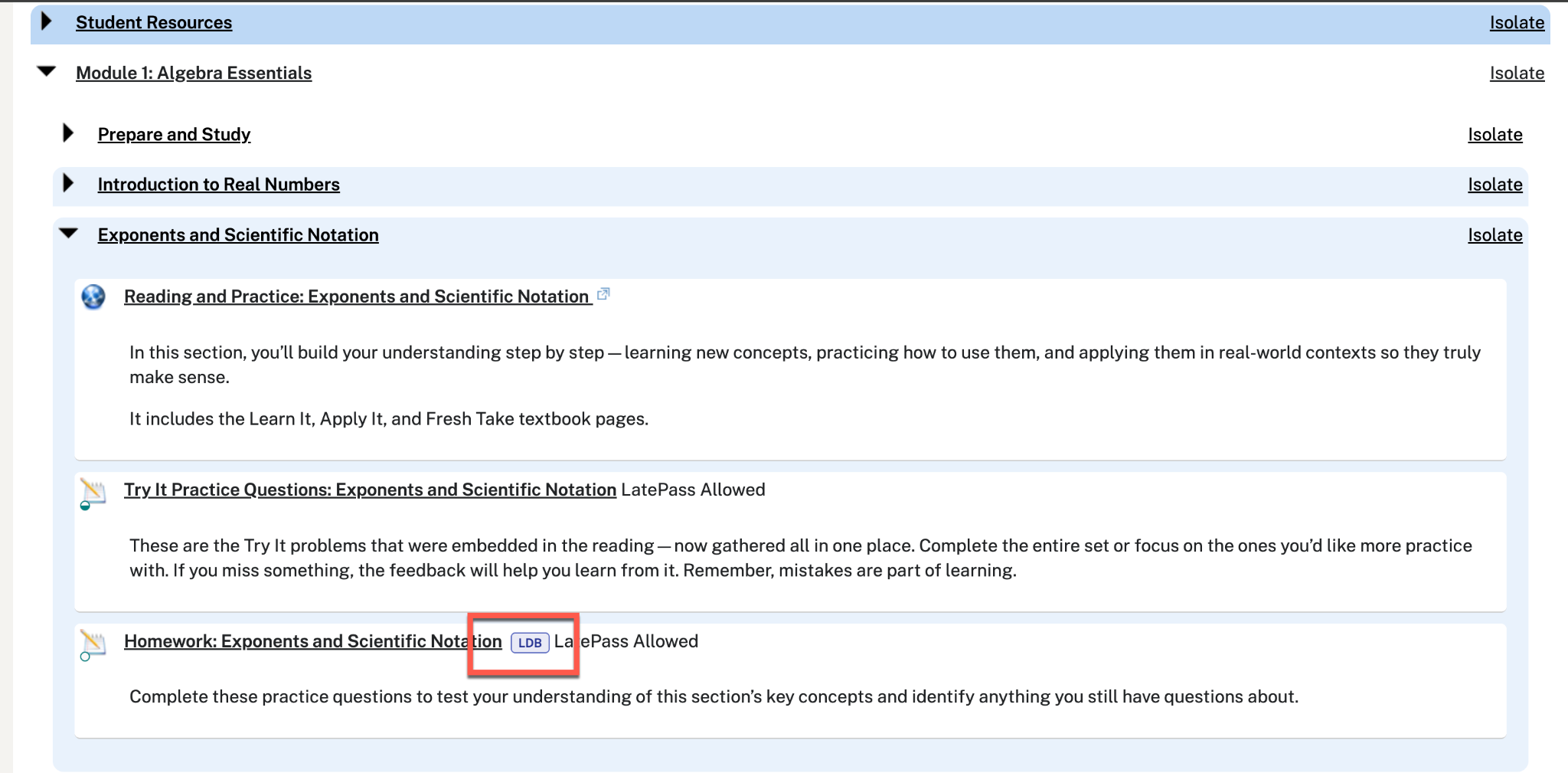
For students accessing OHM within the LMS, while your LMS may look slightly different from the below, you’ll be prompted to install/continue when clicking on the assignment that requires Lockdown Browser:
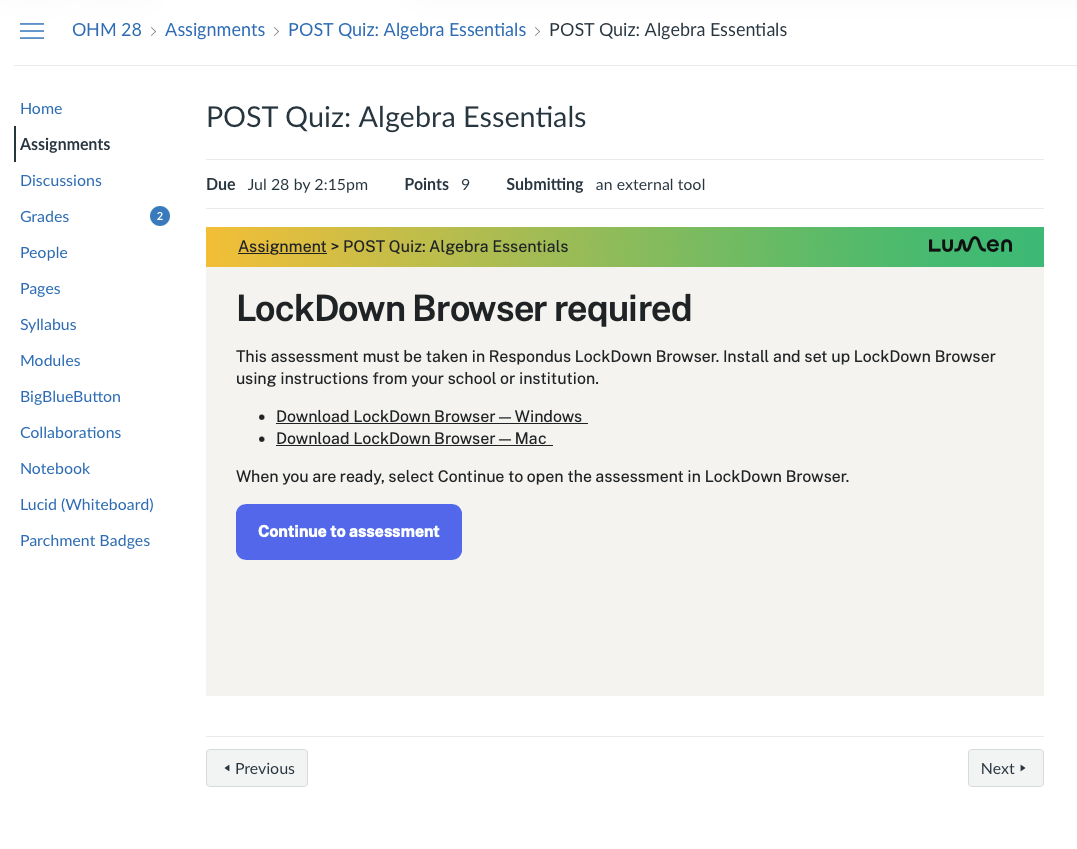
You only need to complete the installation once. Once you’ve installed Lockdown Browser you can simply click “continue to assessment”
How do you know whether your installation is successful?
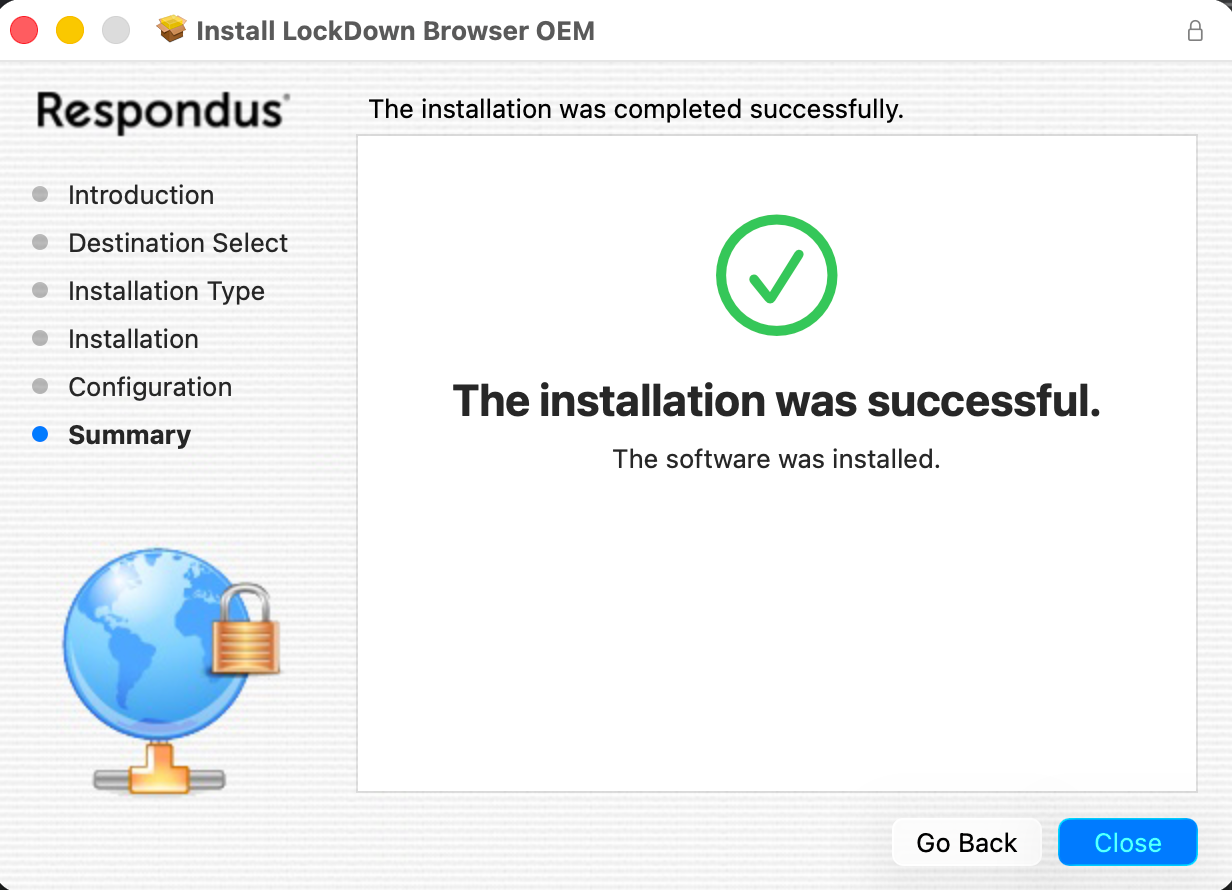
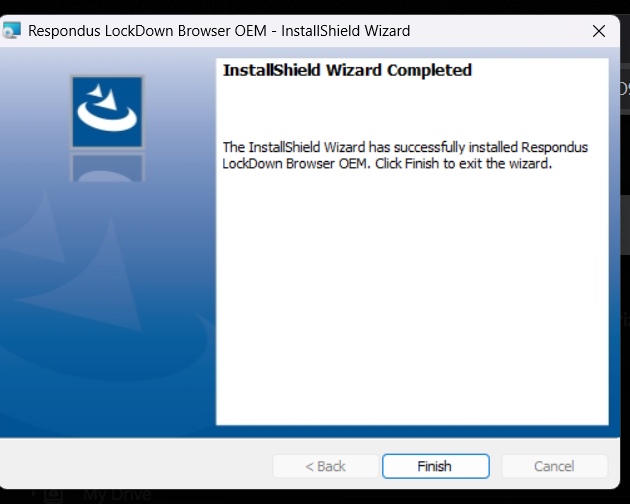
Your instructor should make a Technical Test assessment for you to test out your installation and launch an assessment but if they haven’t. You should see success confirmation at the end of the installation process.
For Mac Users:
For Windows Users:
If you’re not sure if the browser installed correctly - you can also attempt to launch the application, if a blank browser window launches or if you get a message prompting you to launch from another application that indicates a successful installation.
If your installation was unsuccessful you may see an error message.